
Supply a useful page list
Choose your website, open Internal links, and select Add pages. In Inventory:- Choose Where this list came from. You can use your own list or page URLs extracted from a sitemap, CMS, repository, or search-data export. For a sitemap, paste its page URLs; the form does not fetch the sitemap file.
- Paste up to 100 distinct page URLs, one per line. Use full HTTP or HTTPS URLs with the website’s exact hostname. Subdomains and a different
wwwversion need their own website. - Optionally add Priority pages that matter to you and up to 10 starting pages for measuring link distance. Both must already appear in your page list. Starting pages do not cause the scan to discover more pages.
- Select This is the complete page inventory for this website only if the list is complete. Leave it unchecked for a sample. AgentLinkOps records your declaration without verifying that the list contains every page.
- Select Save page list. Saving creates a separate scan without fetching pages.
Check pages and keep the coverage in view
Select Check these pages. The progress strip separates checked pages, pages that could not be checked, and pages still waiting. A finished scan can still contain unknown results. Pause checks stops after the current batch and keeps completed checks. Return to the Saved scan and choose Continue page checks to process waiting pages. Closing the page stops the app from starting further checks; return to the saved scan to continue. Checks can also pause for the website’s check interval or after ten minutes. Follow any displayed wait time before continuing. This workflow does not set up recurring checks. Refresh saved evidence reloads saved results. It does not fetch the website again. To collect fresh evidence for pages already processed, including pages that could not be checked, save a new page list and run a new scan. Checks use raw HTML. Links added by JavaScript may be missing, and a blocked or incomplete capture does not establish that a link is absent. Even a list you declare complete still has these capture limits.Read findings as questions to investigate
Open Health and review Where to focus. Expand Finding evidence for the recorded facts, then select Inspect connections.
No findings does not establish that the whole website is healthy. Check the inventory coverage and unknown pages first.
Inspect the connection behind a finding
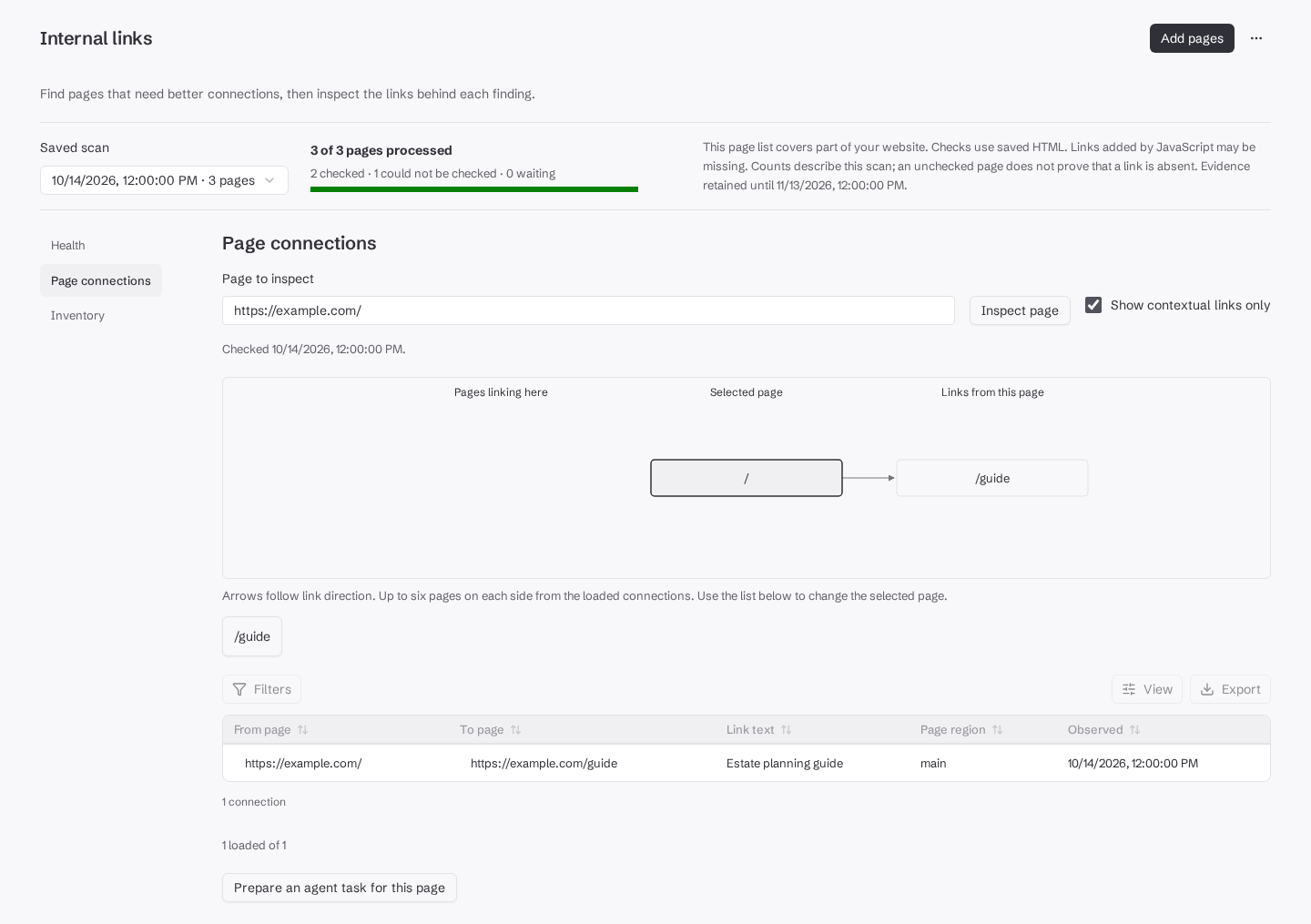
In Page connections, choose a Page to inspect. The graph shows incoming and outgoing links, with up to six incoming and six outgoing pages from the currently loaded connections. Use Next evidence to read further results in the table; the graph is not a whole-site map. Show contextual links only is selected initially. Here, contextual means the link was found in an HTML main-content landmark. It does not establish reader relevance or rendered visibility. Clear the filter to include template and unclassified links. Open a connection row to see its link text, page region, retained surrounding passage, observation time, and capture hash. Use Open source page to inspect the current page before proposing a change. A linked destination outside your supplied list may appear, but its own check status and outgoing links remain unknown.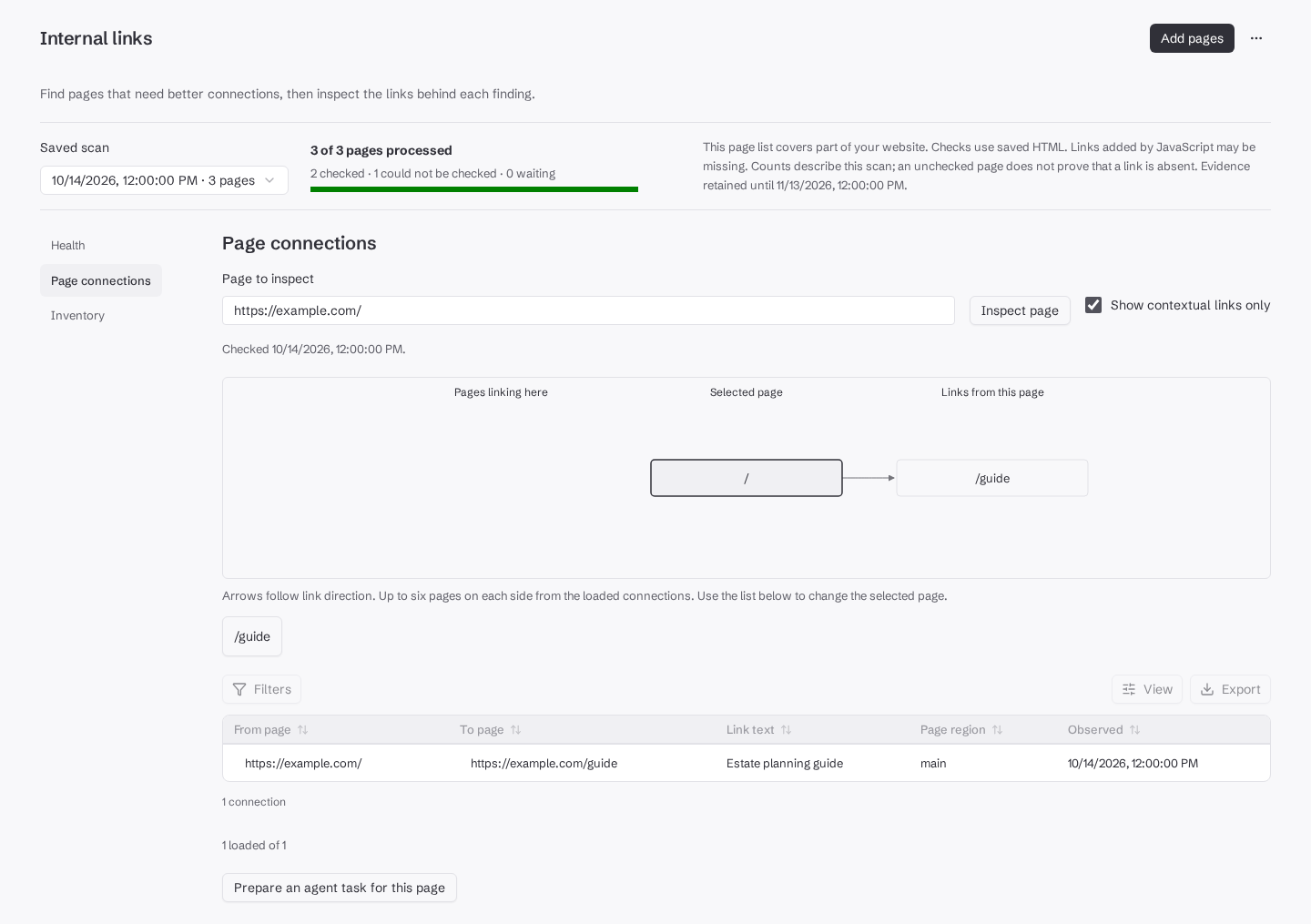
Give your agent evidence and a specific task
Choose Prepare an agent task for this page, or Copy task for your agent from the page menu. The task includes the saved scan reference and asks the agent to follow evidence pagination, check current content and existing links, and propose a useful connection in an exact passage. If clipboard access fails, copy the displayed Agent task text manually. Review the proposal in your existing website workflow. Copying the task does not publish a change or schedule checks. Keep the scan and finding references with the proposal, and record any later authorized change separately. Use Download scan evidence to save a JSON file containing the scan, pages, connections, and findings. The download follows pagination and stops if the scan changes during export; refresh and retry in that case. Export evidence you need before its displayed retention expiry. See sync and export for keeping other AgentLinkOps records in your local workflow.Run the same workflow through commands
Reuse the creation request’s
requestId with the same payload after an uncertain response. Prefer maxPages: 1 for interactive processing and respect returned retry timing. Follow query cursors using the same snapshot ID.
Reading requires watches:read for the website. Saving and processing also require watches:write and a role allowed to manage links. The app’s download action also requires exports:create. Current workspace membership and website access are checked when requests run.